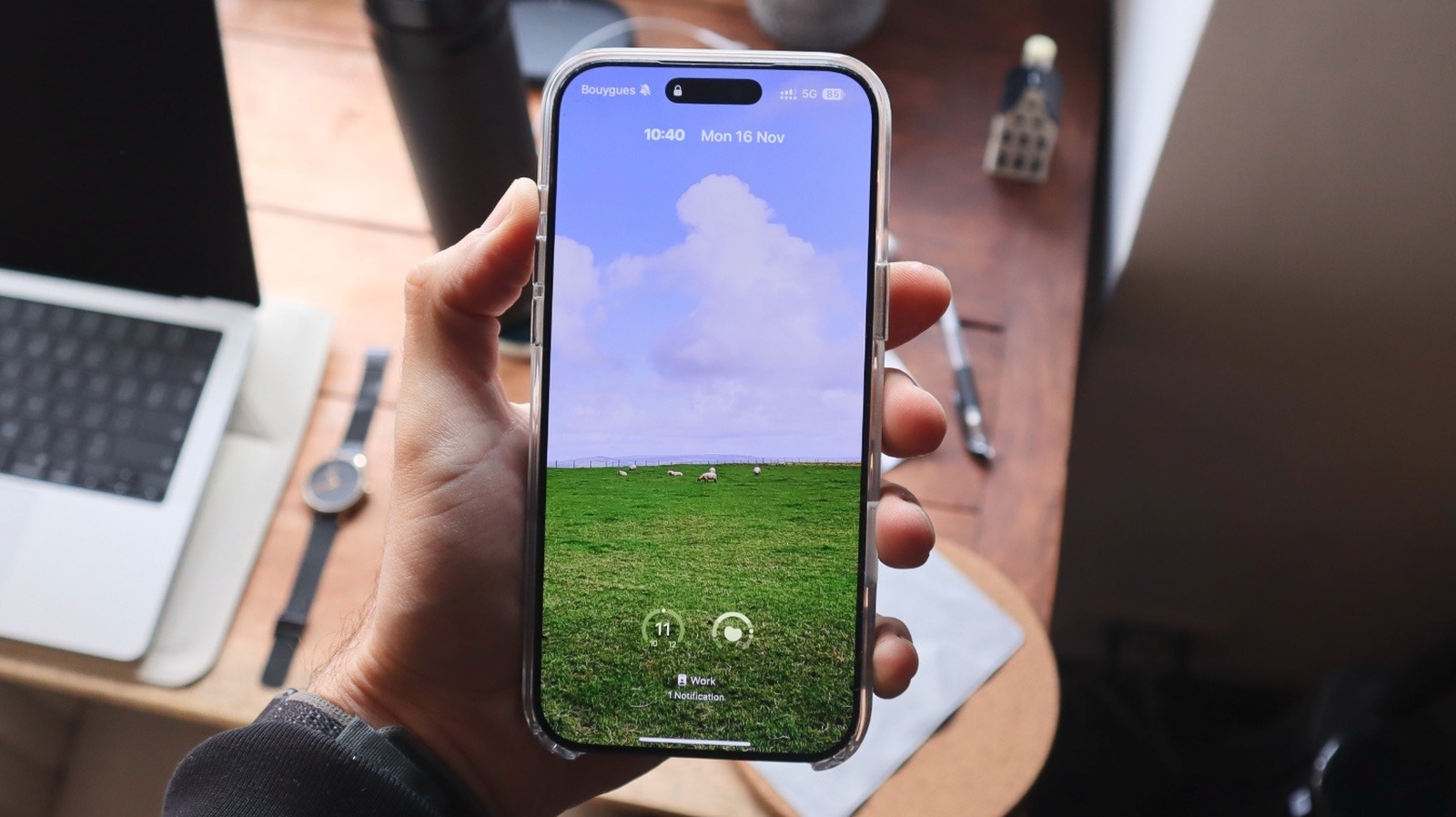
José Adorno/BGR In recent years, Apple has improved the way users can personalize their iPhone’s lock screen. Initially, the company only allowed changes to the wallpaper. Then how it displayed the wallpaper when the screen dimmed. The lock screen now works with customization widgets, allowing you to add and change many aspects of what the iPhone lock screen can do. You can modify the clock, wallpaper, fonts and add color filters. Suddenly, widgets and live activities appeared as well. The latest iOS 27 update, which comes with the new Siri AI, also included more customizations to the clock and widgets, allowing you to make the iPhone feel more like your own. Interestingly, Apple’s big revamp of iPhone customization began with iOS 18, which coincides with the time when the company should have made available all the Apple Intelligence features that we’re just seeing now. The company had already started offering ways to change the lock screen with widgets, filters, and new fonts. With iOS 18, Apple added those features to the Home screen and Control Center, while also making more improvements to the lock screen. After that, Apple brought the Liquid Glass design language with iOS 26, giving the iPhone software a visual overhaul. Starting in 2026, Apple included improvements like animated Apple Music album covers on the lock screen, access to up to three live activities in Dynamic Island, and more. All that change is a lot to keep track of. So here’s a simple list of the best ways you can customize your iPhone lock screen to make it look cooler. Extend your wallpaper, customize widgets, and the new watch look José Adorno/BGR If you’re running iOS 27 and have access to the new set of Apple Intelligence features thanks to the new Siri AI, one of the best things you can do is extend your wallpaper on the lock screen. For example, if you have the perfect photo, but it’s in landscape orientation, or you don’t want your partner or pet’s face to get too close on your lock screen, here’s what you can do: After long-pressing on Lock Screen > Add/Customize a Lock Screen, you can zoom out until the iPhone has the “Extend” feature. Using on-device AI, the iPhone will recreate a portion of the image to fit the vibe you’re going for. Once you do that, you’ll be able to customize other parts of your lock screen. If you have an iPhone with action button and camera control features, for example, you can remove the traditional flashlight and camera widgets and move them to something else you want to access faster, if you find these options redundant. There are several shortcuts you can choose from, including Apple options and third-party apps. Et voilà, you have the most original lock screen possible. Another interesting feature introduced with iOS 27 is the opposite of what the previous software brought. While the lock screen clock has gotten larger over the years, you can now make it smaller to give it a minimalist aesthetic look. Simply tap the clock while editing, and then at the top right of the font options there is a button that looks like two rectangles. Tap it and your watch will shrink to the date area. AI-generated wallpapers and focus mode changes José Adorno/BGR Another important setting that few people really take advantage of is Apple’s focus modes. Introduced in the iOS 15 2021 update, Apple lets you create different lock screens, home screens, wallpapers, and filters for different parts of your day or mood. You can create one for work and another for while you’re in the car. If you are swimming, you can set another wallpaper and only allow specific people to call you, etc. Mastering the focus mode can take a while because it has many potential combinations of its functions, but the result can be very rewarding. Many people use it to avoid receiving those endless social media notifications during work hours, or even prevent Trello and Slack from alerting you when you’ve been away from work for a while. Did I mention that these focus modes can be set based on location? Since your phone knows where you are, focus modes can be activated when you arrive or leave a specific location, at a specific time, or even when Apple Intelligence understands that you’re doing something else, like when you start playing a game or riding the bus. You can find the focus modes by opening the Control Center and venturing inside the Focus tab. With that, you can go beyond Do Not Disturb and create different filters for the day, including unique lock screen combinations that make sense for that specific time of day. Another cool feature for someone who wants a completely different lock screen wallpaper is to create AI-generated wallpapers based on your photos, or memoji, or even just a message you give over an image you’re imagining in your head. When customizing a lock screen, tap the More button, then Image Playground, select from a few layout styles, and then describe an image for a unique wallpaper. An added tip is that with iOS 27, you can even remove the Now Playing card from the lock screen, and whatever is playing will continue to play, providing the ultimate minimalist design.