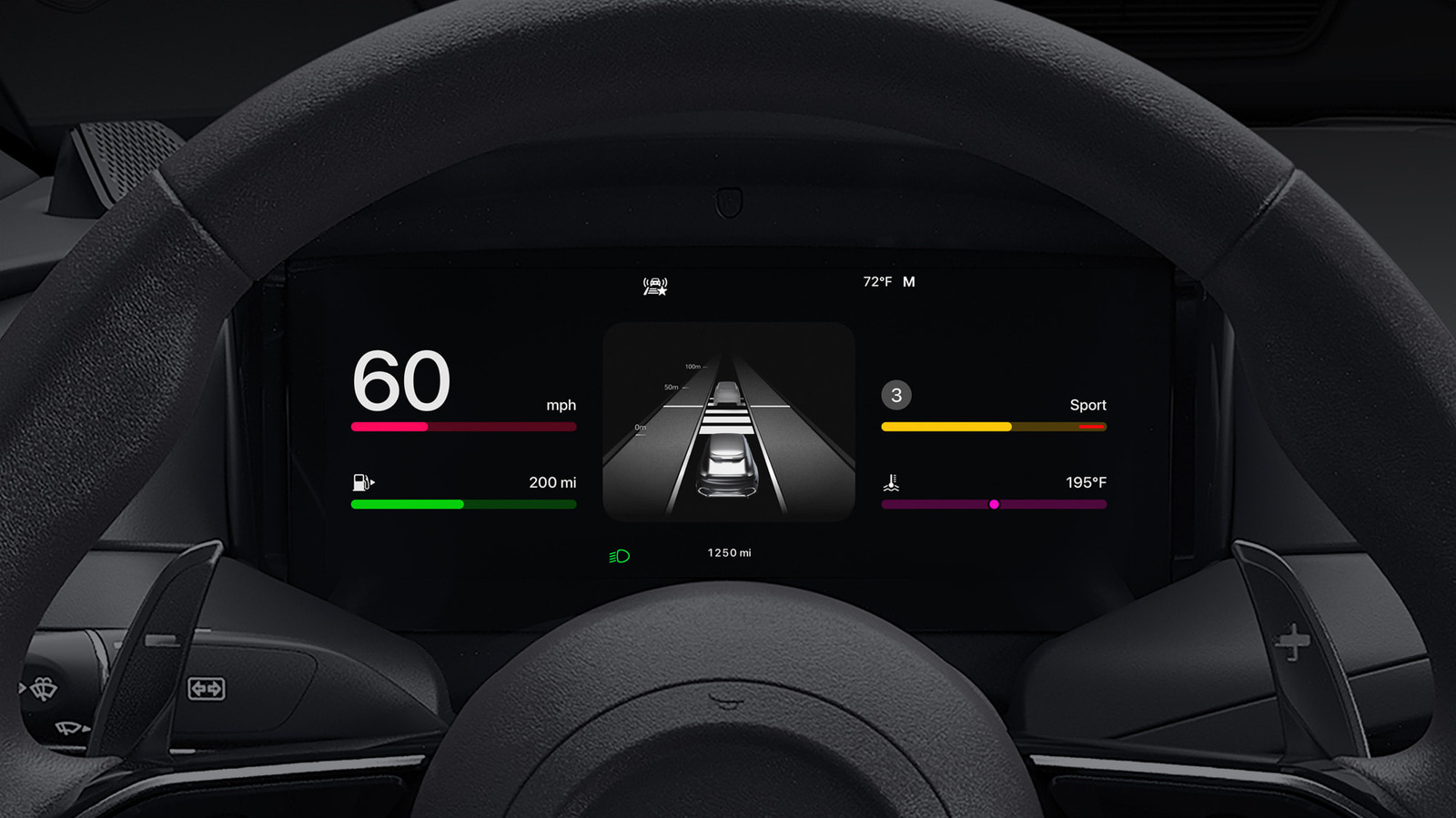
CarPlay can get even better if you take a few minutes to customize it. Your iPhone turns your car’s infotainment system into a navigation and communication hub, thanks to CarPlay. While it works great by default, there are several ways to improve it even further, plus new features arrive from time to time. From basic CarPlay settings to the perfect app layout, fine-tuning the feature can make your ride safer and more entertaining. And with iOS 27 bringing several new updates to CarPlay, now is a great time to dive into this core iPhone feature. Make the most of the design and the screen. The easiest way to improve your CarPlay game is to customize its layout to your liking. You might be surprised to learn that you should rearrange the icons on your iPhone, not your car screen. To do this, open Settings on your iPhone, tap General, and select CarPlay. From there, select your vehicle and enter the Applications menu. Here you will find a list of apps on your phone that support CarPlay; Drag them up or down to make the most important ones available on the CarPlay screen. The size of your car’s screen defines how many apps appear on the first page, so you may need to get creative by prioritizing the most used ones. To remove or add apps, tap the red minus sign or green plus sign, respectively. Starting with iOS 26, you can further organize your infotainment system through CarPlay widgets. These bring the same quick views you use on your phone’s home screen, like the weather, calendar, and clock, to your car’s screen. Edit them by tapping Widgets in the same menu where you selected your apps previously. CarPlay will intelligently swap its widgets throughout the day if you enable Smart Rotate, and similar widget suggestions will show available ones even if you haven’t added them. CarPlay’s overall brightness should change with the dashboard controls, but you can go further to toggle light and dark mode to suit conditions depending on the time of day. Go to Settings > CarPlay Screen Appearance and then select Automatic to allow CarPlay brightness to adjust automatically. Apple’s CarPlay visual accessibility guide can help here, too. To improve its appearance, customize your wallpaper by opening Settings within CarPlay and tapping Wallpaper. Choose your favorite option and press Set. You can also change the colors of your icons, toggling between Default, Dark and Light, in Settings > Customize icons in CarPlay. Maximize what you get from CarPlay Siri is built into CarPlay; By saying “Hey Siri” or pressing the voice button on your car’s steering wheel, you can send messages, start navigation, change the playlist, and perform other actions. On a compatible iPhone, the revamped Siri AI in iOS 27 is also more useful in the car. And if the assistant becomes the backseat driver, you can prevent Siri from interrupting you while using CarPlay by modifying several settings. If you want, you can go further by enabling voice commands, an accessibility feature that provides more CarPlay controls with your voice. To activate this, go to Settings > Accessibility > Voice Control in CarPlay. Once enabled, you will continually hear commands such as opening apps, swiping left or right, or tapping a certain item on the screen. For a complete list of commands, see Apple’s voice control CarPlay support page. The Focus feature is a must-have for productivity on your iPhone, and Driving Focus helps reduce notification distractions without affecting essential driving apps. To enable Driving Focus, go to Settings on your vehicle’s CarPlay screen, select Driving Focus, and choose Activate with CarPlay. For best results, customize Driving Focus notification settings on your phone by going to Settings > Focus > Driving. Under People, select the contacts whose messages you want to allow or mute. You can also allow repeat calls from people who would otherwise be suppressed, as well as create automatic responses. Visit the While Driving tab to turn on this Focus automatically whenever you connect to CarPlay, if you haven’t already done so on your iPhone. Beyond these settings and app changes, elite CarPlay users use wireless and wired connections depending on the situation. Although a wireless connection is convenient, it doesn’t charge your phone while you use it unless your car has a wireless charging pad. Therefore, on long road trips, plugging in your phone is the right choice to keep the battery charged. Other little tricks make CarPlay even smoother. In the Messages app on your iPhone, long-press a frequent conversation and choose Pin to keep it at the top; Doing so will also notice the Messages for CarPlay app. And don’t forget about the Shortcuts app, where you can create CarPlay automations.