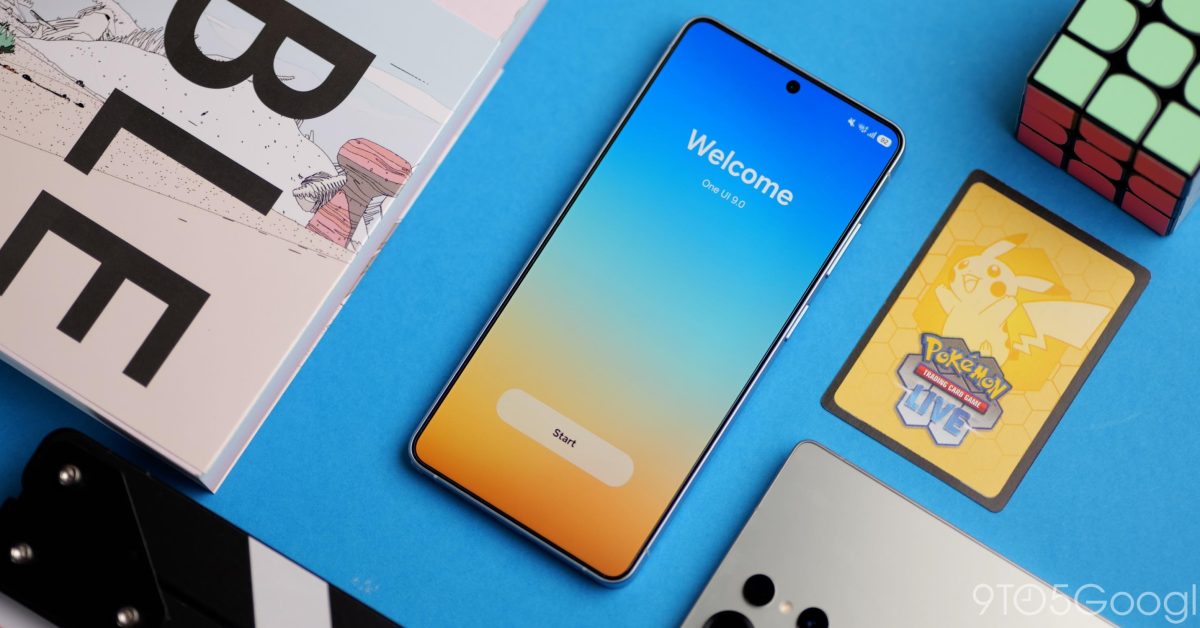
Samsung is now rolling out its Android 17-based update, One UI 9, to its collection of compatible Galaxy smartphones and tablets. Here’s the full list of devices that have been updated so far and what you should know about the update. What’s new in Android 17 on Samsung Galaxy? One UI 9, Samsung’s Android 17 update, continues the trend of evolution rather than revision. The update features some small design tweaks, more AI-powered features, and other changes based on the redesign that debuted in One UI 7 and was repeated in last year’s Android 16-based One UI 8. Some key changes in One UI 9 include: Warranty and Samsung Care status in the Settings menu. Broader support for Now Nudge My FanCam, automatic video cropping based on a selected theme. More Quick Panel customization (Quick Settings) AI Privacy Alerts Updates to Samsung DeX New lock screen watches that can adapt to your wallpaper Samsung Galaxy devices running Android 17: The full list While Samsung has not confirmed an exact timeline for the release of One UI 9 and Android 17 for Galaxy devices, updates are now rolling out in parts of the world. Below you will find a regularly updated list of all Samsung Galaxy devices that have received a stable Android 17 update so far. Announcement: Scroll for more content Galaxy S devices running Android 17 Galaxy Z devices running Android 17 Galaxy A devices running Android 17 Updating… One UI 9 Changelog Here’s Samsung’s full changelog for One UI 9, as listed for the Galaxy S26 series. Some features may vary by device. Galaxy AI Enhanced Now nudge Now nudge provides helpful suggestions in more places throughout your Galaxy experience. In addition to the keyboard, suggestions will now appear in conversation notifications and in a floating button in the bottom right corner of the screen. There are also several new types of suggestions, such as entering reservation details or addresses and saving places on Google Maps. Focus on someone important My FanCam lets you select a person in a video and automatically follow them while you crop the rest of the video. The interpreter keeps your conversation in front of you. In conversation mode, you can scroll through the entire conversation while continuing to speak. View useful information during calls View relevant events and other information related to your current call on the call screen. Productivity and multitasking More customizable Quick Panel Now you can rearrange and customize the controls in your Quick Panel even more than before. You can resize the brightness and volume sliders, as well as the media player. You can also separate the sound mode button from the volume slider. Privacy, Security, and Device Protection Warranty & Care The new Warranty & Care menu in settings allows you to check your warranty information and access diagnostic checks and helpful information to keep your Galaxy in top condition. Lock your phone quickly Now it’s easier to lock your phone securely and quickly. Simply press and hold the volume down and side buttons at the same time or tap the Power button on the quick panel. This prevents biometric data from being used the next time you unlock your phone. Location Access Transparency Stay aware of your location privacy. A blue indicator will appear at the top of the screen when an app accesses your location. Tap the indicator on the quick panel to see which app it is. Greater security and privacy protection Alerts will appear in your Now report to inform you about malware risks, apps from unknown sources, unnecessary permissions, and other issues that can put your security and privacy at risk. Apps that have been identified as malicious or vulnerable will be blocked from opening until you decide if you want to remove them. AI Privacy Alerts Get help protecting your personal data. The AI will monitor how apps use permissions and notify you about unnecessary access to your personal data. Samsung Health New look for Samsung Health Samsung Health has been redesigned to make your health data easier to understand. Enjoy clearer images, improved graphics, and a more engaging experience to help you achieve your health goals. Personalize the Health home screen. Resize the cards and organize them by category, such as Activity, Sleep, Mindfulness, and Nutrition, to make it easy to access your top priorities. Record health data quickly Now it’s easier to add your health information directly from the Samsung Health home screen. You can record your mood, meals and more. You can even use the camera for faster input. Advanced Trend Analysis Track your progress with improved trend charts in Samsung Health. View data in hourly, daily, or weekly intervals, pinch to zoom for a closer look, and overlay multiple graphs to compare your performance over different periods. Monitor changes in your sleep vital signs Samsung Health helps you notice significant changes in your sleep health data. Use Galaxy Watch or Ring measurements to better understand your daily health patterns. Manage your heart health Track key health metrics and lifestyle factors that affect your heart. A daily score based on your sleep, exercise, BMI, and blood pressure helps you better understand current trends in your heart health. Track your cardiovascular load. See how your workouts and activity impact your heart so you know when to push harder and when to rest. Your target cardio load range is adjusted daily based on your recent activity and training approach. Check Your Fitness Index Your Fitness Index is an overall score calculated using five key fitness metrics: body composition, cardio, strength, flexibility and endurance. Set a goal and get personalized information tailored to your results. Keep your ears safe The new hearing tracker monitors sound levels detected by your Galaxy Watch and audio levels from headphones to help you control your exposure to loud sounds. View your cycle and body rhythm Get a more personalized view of your cycle and body rhythm with new cycle tracking options. You can view your cycle information on your calendar and better understand your health patterns. Bixby Activate Bixby with a gesture Talk to Bixby by simply holding your phone to your mouth and speaking. No words are needed to wake up. Manage your conversations Keep your chats organized. Search for them, rename them or set your favorites. You can also delete all your past conversations at once. Bixby on your home screen Add a Bixby widget to type or talk with Bixby or go directly to your conversation history. Accessibility Discover new Accessibility features Check out the What’s New menu in Accessibility settings to learn about and try the latest Accessibility features for your Galaxy. Text highlighting for easier reading Need a closer look? Tap any text on the screen to display it enlarged and highlighted in its own window. You can also customize the font size, colors, and other settings to match your preferences. Physical keyboard shortcuts Use shortcuts on your physical keyboard to access the Accessibility settings you need without touching the screen. Mouse Key Enhancements New options are available when using the keyboard for mouse interactions, including speed and acceleration control. You can also use the numeric keypad on your keyboard to point and click. Replace One-Touch Swipe The Replace One-Touch Swipe option is now located in the Dexterity & Interaction menu instead of the Assistant menu for easier access. Select to Talk Get quick audio readings without turning on full TalkBack. With the new Select to Speak feature, you can select an item on your screen, such as text or an image, and hear it read or described aloud. Improved TalkBack Updates TalkBack updates can now be applied with a simple app update from the Play Store, helping you get the latest features and accessibility improvements. Even More Improvements New Lock Screen Clock The default clock on your lock screen has been redesigned with a cleaner, more modern look that adapts to match your wallpaper. Samsung DeX Improvements It’s easier to move an application window from one desktop to another using the menu at the top of the window. Desktop previews are now available at the top of the Recents screen, making it easy to switch with a single tap. Follow Ben: Twitter/X, Threads, Bluesky and Instagram Last updated 10/10/2026 – Posted 10/01/2026 FTC: We use automatic affiliate links to generate income. Further.