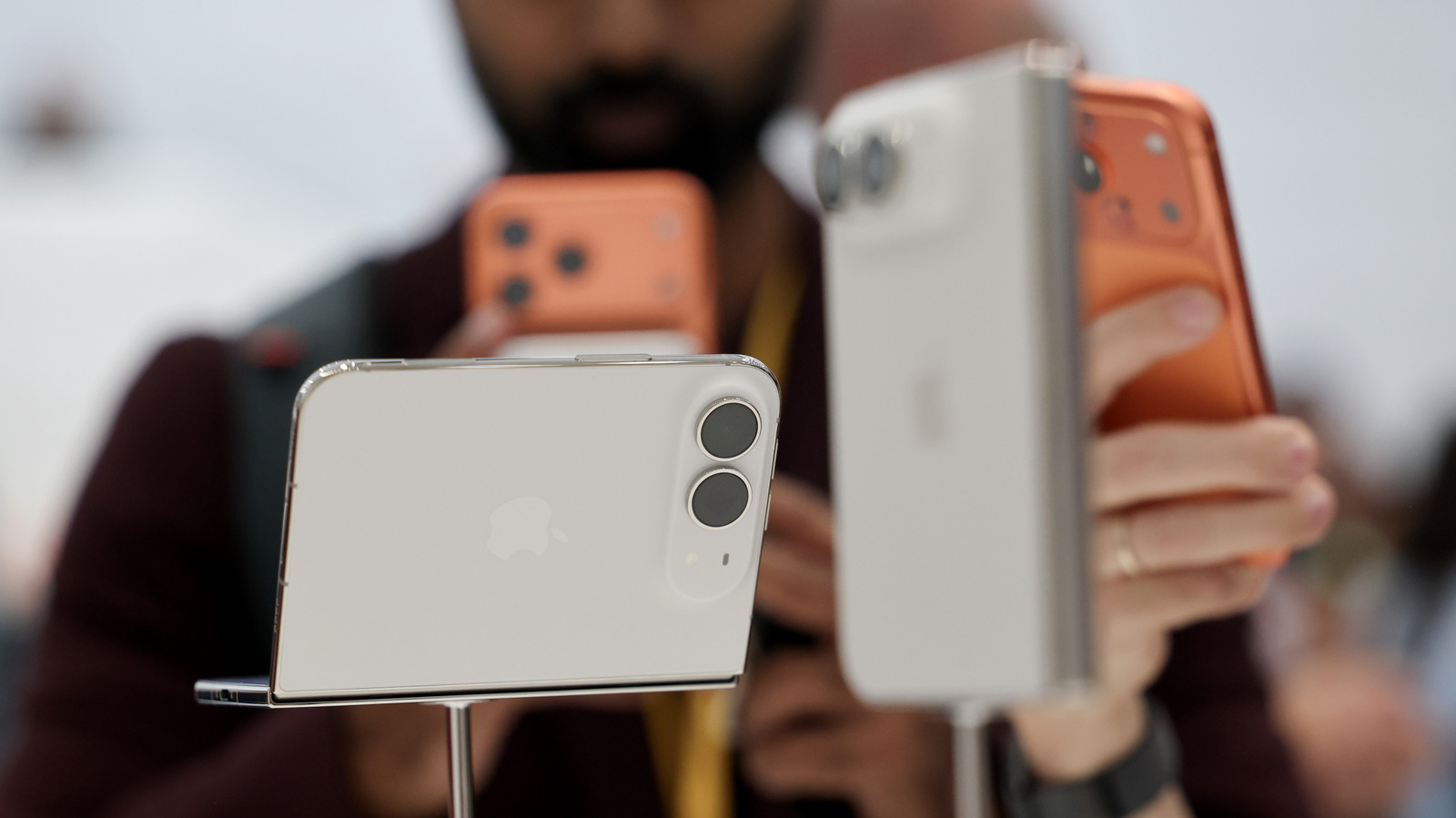
If you switch between two iPhones regularly, you’ll love this new feature. Benjamin Fanjoy/Getty Images If you use two iPhones, you no longer need to run separate carrier accounts for each of them, thanks to a new feature in iOS 27: iPhone Handoff. Briefly mentioned at WWDC and in more detail during Apple’s Surprise and Shine event on September 9, iPhone Handoff lets you use the same phone number on two iPhones; In typical Apple fashion, the feature is so simple it’s almost invisible. Once you set it up, all you have to do is unlock the iPhone you want to use and you’ll be ready to go. Handoff lets you receive and make calls and messages on both phones using the same number, add payment cards on one device to work on both, and interact seamlessly with most apps and iCloud. There are some limitations; For example, your carrier must support iPhone Handoff, it doesn’t switch your paired Apple Watch between devices, and some wallet items like IDs and passes won’t work, but most features work perfectly. In this article, you will learn how to set up iPhone Handoff, how to use it, and which carriers support it. Setting up iPhone Handoff You can set up iPhone Handoff on any two devices running iOS 27 or later. You both need to be on the same Wi-Fi network and signed in to the same Apple account for iCloud, FaceTime, and iMessage. One phone will be the primary phone and the other will be the secondary phone. The main device contains the main eSIM and manages the carrier settings, but you can also use the eSIM from each phone, as long as they are both from compatible carriers. While we hope more will do so, only T-Mobile in the US and Telekom in Germany have confirmed support so far, with T-Mobile charging an additional $5 monthly fee. Here we explain how to configure it on your iPhones. Place your two iPhones next to each other and unlock one. Navigate to Settings > Cellular and tap Set up cellular/Add eSIM, or iPhone Transfer if a number is already configured on the device. Choose Use number on this iPhone and another, tap Continue, and follow the on-screen instructions to assign a device as your primary iPhone. It’s worth noting that once it’s time to replace one iPhone with another, you need to transfer the eSIM to the new device. If you want to turn off Handoff completely, Apple says you’ll need to contact your carrier. Why and How to Use iPhone Handoff Apple has designed iPhone Handoff to be as easy to use as picking up your iPhone and unlocking it, which is literally all you need to do. A small notification will appear on your Dynamic Island just below the Wi-Fi indicator to let you know that your device is enabled for iPhone Handoff. While it’s nice to have, iPhone Handoff is also a niche feature. However, you may find it useful when migrating between an old and new iPhone, easily carrying an older, less valuable device when you travel, or using a more portable or cheaper iPhone alongside a $2,000 iPhone Duo. Professionals who use different devices for work and personal life may also find this feature useful.