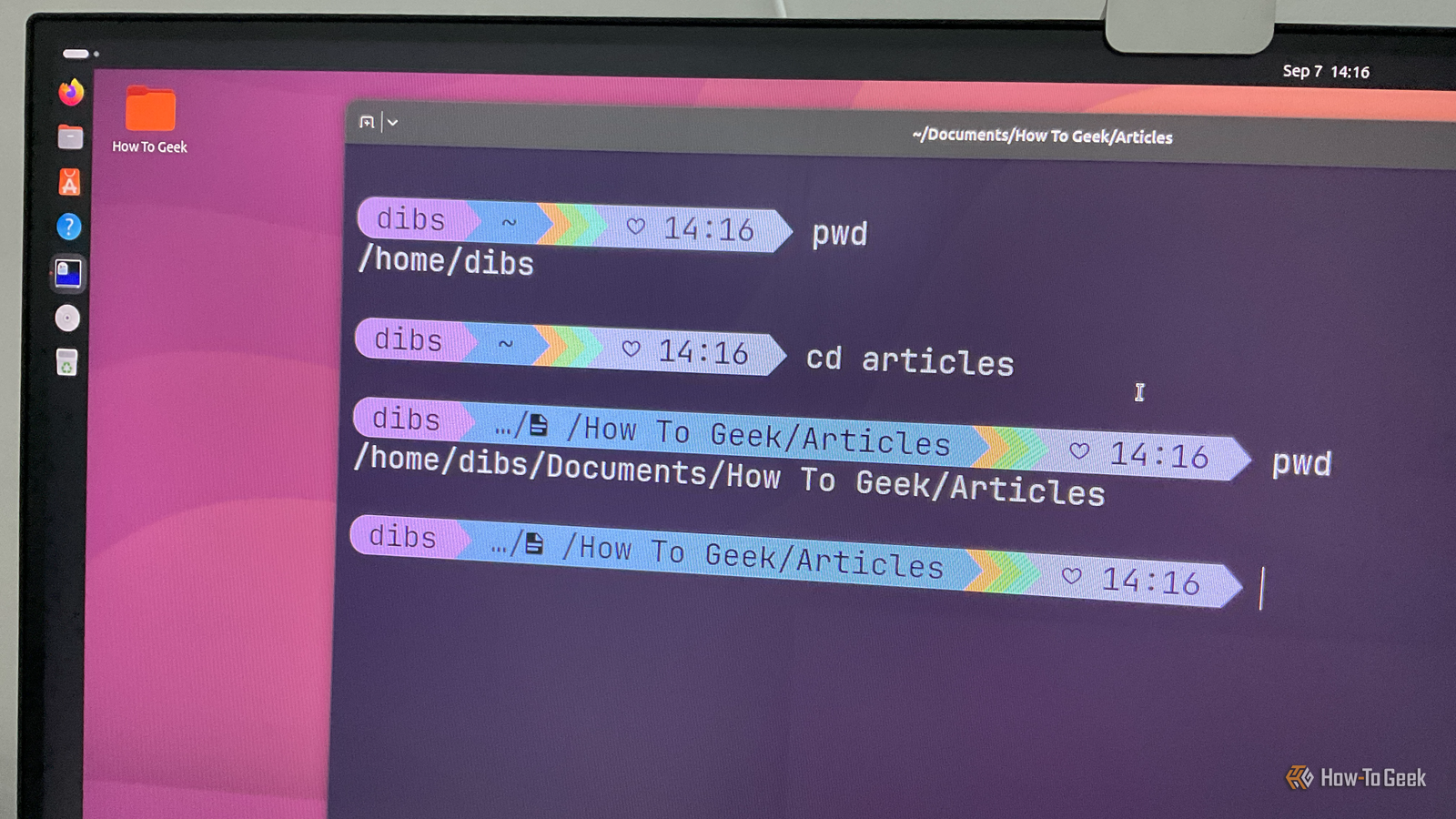
The cd command, short for “change directory,” is one of the most fundamental commands on Linux. It’s how you navigate the Linux terminal — moving between different working directories. That said, cd is an old-school way to navigate the Linux file system, and several modern alternatives have emerged that make the process faster and easier. Here’s a modern cd replacement that can help you navigate your file system with less typing and less guesswork.
The problem with the cd command
Navigating your filesystem shouldn’t require you to memorize it
The cd command is not a “search and find” tool. It doesn’t search for the specific directory you have in mind. Instead, it expects you to provide an absolute or relative path to the directory you want to navigate to. For example, the absolute path to the directory where I keep my How-To Geek articles is:
/home/dibs/Documents/How to Geek/Articles
Now, let’s say I have my terminal open inside the Documents directory. To navigate to the Articles directory using cd, I would need to enter the relative path:
cd “How to Geek/Articles”
Alternatively, if I were in the Pictures directory, I would need to enter the absolute path:
cd “$HOME/Documents/How to Geek/Articles”
Of course, I could use Tab completion instead of writing out the entire path — but either way, I still need to know enough about where the destination is in the file system to navigate to it. If I forget how a specific directory is nested, I’d need to use cd along with other commands, such as ls and tree, to figure out where it is.
Quiz
8 Questions · Test Your Knowledge
Linux command line knowledgeTrivia challenge
From basic navigation to powerful piping — see how well you really know the
terminal.
CommandsPermissionsNavigationScriptingUtilities
Begin
Which command prints the full path of the current working directory?
AlsBcdCpwdDdir
Correct! The `pwd` command stands for ‘print working directory’ and
outputs the absolute path of wherever you currently are in the filesystem. It’s one of the first
commands new Linux users learn for getting their bearings in the terminal.
Not quite — the correct answer is `pwd`, which stands for ‘print working
directory.’ Commands like `ls` list directory contents and `cd` changes directories, but neither tells
you where you currently are the way `pwd` does.
Continue
In a Linux file permission string like `-rwxr-xr–`, what does the first character
`-` indicate?
AThe file is hiddenBThe file is a regular fileCThe file has no permissionsDThe file is a symbolic link
Correct! The first character in a Linux permission string indicates the
file type. A `-` means it’s a regular file, `d` means directory, `l` means symbolic link, and there are
others for special file types like block devices and sockets.
Not quite — the first character `-` indicates the file is a regular
file. A `d` would indicate a directory, and `l` would indicate a symbolic link. Hidden files in Linux
are simply files whose names begin with a dot, not a special permission character.
Continue
Which command would you use to display the last 20 lines of a file called `log.txt`?
Ahead -20 log.txtBtail -20 log.txtCcat -20 log.txtDless -20 log.txt
Correct! The `tail` command shows the end of a file, and the `-20` flag
specifies how many lines to display. It’s especially useful for monitoring log files in real time when
combined with the `-f` flag, which follows new output as it’s written.
Not quite — the correct answer is `tail -20 log.txt`. The `head` command
shows the beginning of a file, not the end. `tail` is the go-to tool for reading the most recent entries
in a file, and `tail -f` is beloved by sysadmins for live log monitoring.
Continue
What does the `grep` command primarily do?
ACopies files between directoriesBSearches for patterns within text or filesCCompresses files into an archiveDDisplays disk usage statistics
Correct! `grep` stands for ‘global regular expression print’ and is used
to search for matching patterns in files or streams of text. It’s one of the most powerful and
frequently used tools in the Linux command line, especially when combined with pipes and regular
expressions.
Not quite — `grep` is used to search for patterns within text or files.
The name stands for ‘global regular expression print.’ For copying files you’d use `cp`, for compression
you’d use `tar` or `gzip`, and for disk usage you’d reach for `du` or `df`.
Continue
What numeric permission value gives the owner read, write, and execute; the group
read and execute; and others read only?
A764B755C644D751
Correct! In Linux octal permissions, read=4, write=2, execute=1. So 7
(4+2+1) gives the owner full access, 5 (4+1) gives the group read and execute, and 5 again gives others
the same. The `chmod 755` setting is extremely common for executable scripts and web server directories.
Not quite — the correct answer is 755. Linux permission values are
calculated as read=4, write=2, execute=1. Owner gets 7 (all three), group gets 5 (read+execute), and
others get 5 (read+execute). The `chmod` command uses these octal values to set permissions quickly.
Continue
In a bash script, what does the special variable `$?` represent?
AThe script’s process IDBThe number of arguments passed to the scriptCThe exit status of the last executed commandDThe name of the currently running script
Correct! In bash, `$?` holds the exit status code of the most recently
run command. A value of `0` means success, while any non-zero value indicates an error. Checking `$?` is
a fundamental technique in scripting for error handling and conditional logic.
Not quite — `$?` contains the exit status of the last executed command.
The process ID of the current script is stored in `$$`, the number of arguments is in `$#`, and the
script’s name is available via `$0`. Mastering these special variables is key to writing robust bash
scripts.
Continue
Which command is used to find files in the filesystem based on criteria like name,
size, or modification time?
AlocateBsearchCwhichDfind
Correct! The `find` command is a powerful utility that searches the
filesystem in real time using a wide range of criteria. You can search by name (`-name`), file type
(`-type`), size (`-size`), permissions, and even execute commands on results using `-exec`. It’s one of
Linux’s most versatile tools.
Not quite — the correct answer is `find`. While `locate` is also used to
find files, it relies on a pre-built database that may be outdated. The `find` command searches the live
filesystem and supports far more filtering options, making it the more precise and flexible choice.
Continue
What is the purpose of the pipe operator `|` in Linux?
AIt redirects output from a command into a fileBIt runs two commands simultaneously in the backgroundCIt passes the output of one command as input to anotherDIt appends the output of a command to an existing file
Correct! The pipe operator `|` is a cornerstone of Linux’s philosophy of
chaining small, focused tools together. For example, `ls -l | grep ‘.txt’` passes the output of `ls`
directly into `grep` to filter results. This lets you build powerful one-liners without needing
temporary files.
Not quite — the pipe `|` passes the output of one command as the input
to another. Redirecting output to a file uses `>`, and appending to a file uses `>>`. Running commands
in the background uses `&`. The pipe is fundamental to Linux’s ‘do one thing well’ design philosophy.
See My Score
Challenge Complete
Your Score
/ 8
Thanks for playing!
Try Again
Now, this is how we’ve been navigating the Linux terminal for decades — but just think about how clunky the entire workflow actually is. When you want to open a directory, you usually think about which directory you want, not its entire path. Imagine a world where you could simply type cd articles and the terminal was intelligent enough to figure out which directory you meant and take you there. Well, that’s actually possible, and here’s how to do it.
Related
Please stop using these 7 deprecated Linux commands
Get with the program!
How this modern command solves this problem
Just enter the destination — no need to remember the direction
The modern Linux command in question is zoxide — a Rust-based alternative to the cd command that keeps track of the directories you visit and uses that information to help you jump back to them later. This way, instead of remembering a directory’s full path, you can just enter the destination directory, and zoxide will take you there. For example, instead of entering:
cd “/home/dibs/Documents/How To Geek/Articles”
You can simply use:
z articles
Notice how I used “articles” instead of “Articles.” That’s because zoxide is case-insensitive.
The way this works is actually very interesting. Once installed, zoxide maintains a database of directories you’ve visited and ranks them using frecency — a combination of frequency and recency. So, every time you visit a directory, it gets logged in the zoxide database and bumped up in the rankings the more you visit it. This allows zoxide to favor the directories you actually use most often rather than simply choosing the first matching path. This becomes particularly useful when you have multiple directories with the same name. Imagine I have two different Articles directories:
~/Documents/”How to Geek”/Articles
~/Documents/Forbes/Articles
Now, if I work in the How to Geek subdirectory more often, the command z articles will resolve to ~/Documents/”How to Geek”/Articles instead of the Forbes one. That said, I can easily navigate to the Forbes directory just by narrowing down the search:
z forbes articles
Here, zoxide will search for both terms in its collection of stored paths and resolve to the one with the higher frecency score. However, the order of the terms matters because zoxide expects the matching terms to appear in the same order within the path. So, if I were to enter z articles forbes, for example, it wouldn’t resolve to the Forbes directory unless “articles” appeared before “forbes” in the matching path. That said, you can skip zoxide’s automatic resolution for a specific search query and choose the directory manually instead. Just install fzf and enter:
zi articles
This opens an interactive selection box showing all the saved zoxide directories with “articles” somewhere in their path.
How to install and setup zoxide
Shouldn’t take more than two minutes
All major distros have zoxide in their official repositories, and you can install it with a single command:
sudo pacman -S zoxide # for users on Arch and its derivatives
sudo apt install zoxide # for users on Ubuntu, Debian, and their derivatives
sudo dnf install zoxide # for users on Fedora and its derivatives
Alternatively, you can use the official installation script:
curl -sSfL | sh
Once installed, you also need to initialize zoxide. If you’re using the Bash shell, enter the following commands one after the other:
echo ‘eval “(zoxide init bash)”‘ >> ~/.bashrc # adds eval “(zoxide init bash)” to your ~/.bashrc file
source ~/.bashrc # reloads the Bash configuration
And that’s it — zoxide is installed and running on your system.
If you’re using Zsh or Fish instead of Bash, open your ~/.zshrc or ~/.config/fish/config.fish file, respectively, and add eval “$(zoxide init zsh)” or zoxide init fish | source.
I should also mention that you can use the cd command to invoke zoxide’s directory-jumping functionality. This is useful if, like me, you probably have decades of muscle memory that forces you to type cd instead of z. To do this, enter the following command:
echo ‘eval “(zoxide init bash –cmd cd)”‘ >> ~/.bashrc # adds eval “(zoxide init bash –cmd cd)” to your ~/.bashrc file
Related
15 Special Characters You Need to Know for Bash
That sequence of strange symbols on the Bash command line must mean something, right? We’re breaking down special characters and how to use them.
The best way to transition from cd to zoxide
Skip the learning curve
The zoxide command won’t be immediately useful as soon as you install it. It first needs to learn which directories you visit so it can build its database, and that’ll take some time. However, you can speed up the process by directly adding the directories you know you visit frequently using the zoxide add command:
zoxide add ~/Documents/”How to Geek”/Articles
zoxide add ~/Documents/Forbes/Articles
zoxide add ~/Projects ~/Documents ~/Downloads # add multiple directories
Now, if you’re having trouble remembering which directories you visit frequently, you can reference your Bash history with this command:
history | grep -E ‘(^|[[:space:]])cd[[:space:]]’
This will show you the directories you recently visited using the cd command, which you can then add to zoxide’s database.
You can even assign an initial score with the –score option, allowing you to give particularly important directories a head start:
zoxide add –score 100 ~/Documents/”How to Geek”
Alternatively, you can use the zoxide edit command. It opens a TUI (Terminal User Interface) showing all the directories in the zoxide database. From here, you can delete unwanted directory entries or increase or decrease their rankings.
Related
These 4 TUI apps will convince you to actually use your Linux terminal
Why memorize complex commands when you just type one and get a powerful interface?