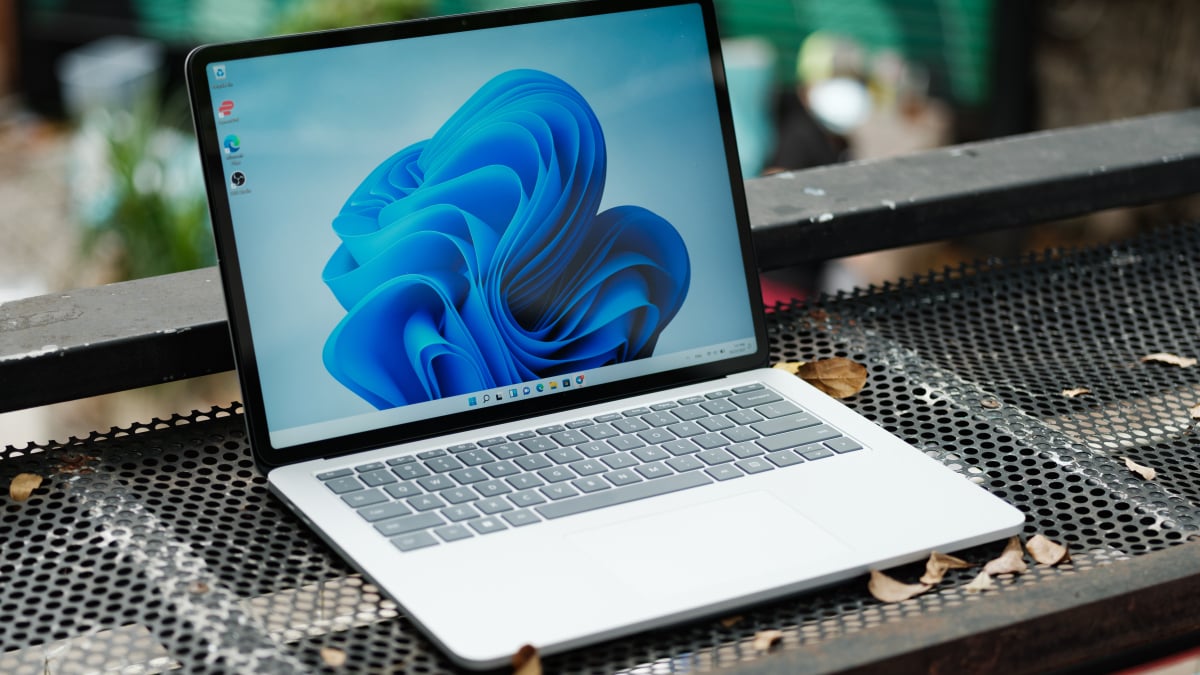
If you’re the type of person who installs Windows updates as soon as they arrive on your PC, you’re probably running Windows 11 build KB5120998 right now. Microsoft released it on Thursday, and while it’s an optional update, it’s not locked behind its Windows Insider program. As such, anyone who has manually checked for new updates since then will have seen it and could have installed it. Unfortunately, that could have been a mistake. As reported by Windows Insider, the latest Windows 11 update is a major one. It includes some important updates to Windows customization, including changes that Microsoft has been testing for months. For example, the update lets you move and resize the taskbar however you want, and there are other changes that improve Windows Search. These updates were previously exclusive to Insiders, but are now officially part of Windows 11. But it’s not all good news. The latest Windows 11 update has bugs. In addition to these new features, it appears that Microsoft inadvertently shipped some bugs with this update. Perhaps the most shocking of these, and the one that most users will notice right away, is an issue where the cursor does not appear on the screen or, when it does, appears too large or too small. Some users report that their cursors are huge, while others find them annoyingly small. Unless you use your keyboard to control everything on your PC, losing access to the cursor isn’t really an option, and even inconsistent UI experiences aren’t really acceptable in 2026, considering Windows has had a cursor since 1985. Fortunately, Microsoft has a fix in the works. The company formally addressed the bug on a support page, stating: “Microsoft has received reports that mouse cursor customization settings are being changed or reverted to certain standard settings. This occurs after installation of Windows updates released on August 27, 2026 (KB5120998) and later.” However, it’s not just the cursor that causes the problems. After this update, Windows may forget the wallpaper settings, which is why your desktop appears black. You can recover your wallpaper, but this problem may occur every time you restart your PC. There are also reports of some fonts appearing blurry, which would be especially annoying on high-resolution screens. What do you think so far? How to Roll Back the Latest Windows Update If you are experiencing any or all of these errors, the only solution at this time appears to be to roll back the update. As Windows Latest highlights, users saw their cursors return to normal after the rollback, and those specific wallpaper glitches were only reported with this latest version. Fortunately, it’s not too difficult to uninstall a recent Windows update. To do this, go to Settings > Windows Update > Update History > Uninstall. Here, look for the update (KB5120998), then choose “Uninstall”. Windows Latest notes that because this update was optional, you won’t miss any security patches this way. Hopefully the next Windows update will be a little more stable than this one.